
Lorem ipsum dolor sit amet, consectetur adipiscing elit. Suspendisse varius enim in eros elementum tristique. Duis cursus, mi quis viverra ornare, eros dolor interdum nulla, ut commodo diam libero vitae erat. Aenean faucibus nibh et justo cursus id rutrum lorem imperdiet. Nunc ut sem vitae risus tristique posuere.
Don’t have Go Birdie Go? Download App today

Website [https://app.gobirdiego.com/analyze/library]
We recommend using a desktop or laptop for the best experience. On a larger screen, you can view 2D and 3D side-by-side, making the analysis clearer and easier to follow.
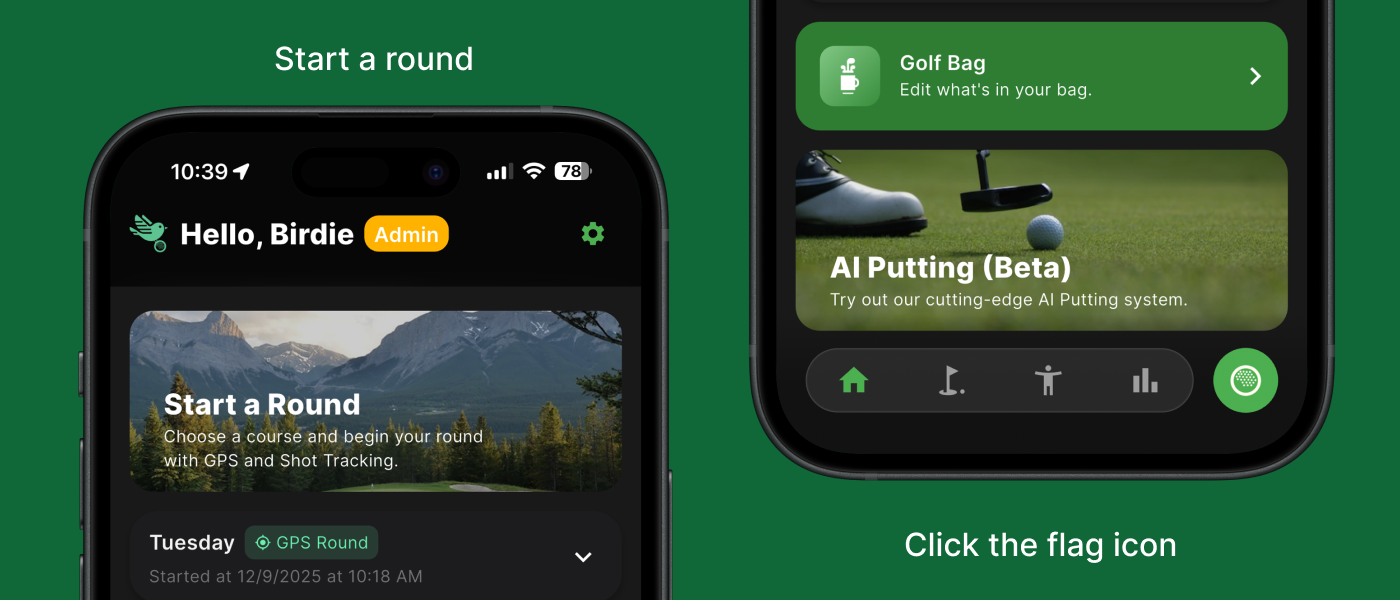
GoBirdieGo App
The app is built for convenience, easy to use on the go, with a feature set that is as complete as the desktop website.
Please locate the options below based on the UI you are using (App, Mobile Website, or Desktop Website).
A) GoBirdieGo App
In the bottom-right corner of the video, tap the
button to open the Guides menu.
Toggle on/off the items you want to analyze.
B) Website [https://app.gobirdiego.com/analyze/library] (mobile view)
In the top-left corner of the video, tap the
button to open the Guides menu.
Toggle on/off the items you want to analyze.
C) Website [https://app.gobirdiego.com/analyze/library] (desktop view)
On the left side of the video, you’ll see the Guides panel.
Toggle on/off the items you want to analyze.
Please locate the options below based on the UI you are using (App, Mobile Website, or Desktop Website).
a. In the top-left corner of the video, tap the button to open the Guides menu.
b. Toggle on/off the items you want to analyze.
a. In the bottom-right corner of the video, tap the button to open the Guides menu.
b. Toggle on/off the items you want to analyze.
a. On the left side of the video, you’ll see the Guides panel.
b. Toggle on/off the items you want to analyze.
a. In the bottom-right corner of the video, tap the button to open the Metrics menu.
b. Tap to expand the metrics card to view all metrics.
C. Displayed metrics are based on what you enabled in the Guides menu
a. Metrics appear in the bottom bar under the video.
b. Displayed metrics are based on what you enabled in the left-side Guides panel.
c. Tip: Hover over a metric item to see the corresponding skeleton/feature highlighted in the video.
If a video includes marked anchors, you’ll see a table button. Tap it to quickly review metrics across the 10 swing phases.
Important: You must own the video to mark anchors. If you don’t own it, you can view the video but cannot edit anchors. Please locate the options below based on the UI you are using (App, Mobile Website, or Desktop Website).
In the bottom-right corner of the video, tap the button to open the Anchor Marker tool.
In the bottom-right corner of the video, tap the button to open the Anchor Marker tool.
On the left side of the video, click “Edit Anchors” to open the Anchor Marker tool. Click the button to turn the tool into a floating panel, so you can place it wherever it’s most comfortable.
1. Move the playhead to the correct moment for the current phase.
2. Press Set to assign that anchor.
3. Repeat until all 10 positions are set (there are 10 total).
The sample image in the bottom-left is a reference to help you understand what to mark at each phase.
- Anchors must be set in chronological order.
- Use the <> buttons to go to the previous/next position.
If you marked something incorrectly:
Use <> to jump to that position Adjust the playhead Press Update
- The Reset button clears your current edits. If you tap it by accident, don’t worry, your anchors won’t be permanently reset unless you press Save .
Every comment includes a button. Tap/click it to report that comment.
A) Block a user
Each comment includes a button. Tap/click it to block that user.
B) Unblock a user
Please locate the options below based on the UI you are using (App, Mobile Website, or Desktop Website).
i) GoBirdieGo App
On the video page, tap the button on the right side, in “more” menu select Unblock User.
ii) Website [https://app.gobirdiego.com/analyze/library] (mobile view)
In the header (top-right), tap the button → select Profile.
In the Profile window, you can unblock users at the bottom.
iii) Website [https://app.gobirdiego.com/analyze/library] (desktop view)
In the header (top-right), click your avatar → select Profile.
In the Profile window, you can unblock users at the bottom.
This feature is currently available on the website only.
Please locate the options below based on the UI you are using (Mobile Website, or Desktop Website).
A) Website [https://app.gobirdiego.com/analyze/library] (mobile view)
In the header (top-right), tap the button → select Profile.
In the Profile window, choose your preferred theme.
B) Website [https://app.gobirdiego.com/analyze/library] (desktop view)
In the header (top-right), click your avatar → select Profile. In the Profile window, choose your preferred theme.
Add: Tap/click the button to create a new comment.
Edit: Tap/click the button on your comment to edit it. (You can only edit your own comments.)
Delete: Tap/click the button on a comment to delete it. If you are the video owner, you can delete any comment on your video.
Only the video owner can edit video settings.
On the Library page, each video card has button. Tap/click it to open the Edit Clip window.
You can:
A) Change the clip name (please avoid inappropriate language)
B) Select one or more clip categories
C) Toggle Allow Comments
Off: Other users cannot comment and will not see comments.
You (the owner) can still view and manage existing comments.
On: Users within the visibility scope can view and post comments.
D) Set Visibility
Private (default): Only you can view it.
Public: When you switch to public, our admin team will review the content. Your video becomes publicly visible only after approval.
Group (Group Plan required): Your video is visible to members of your group.